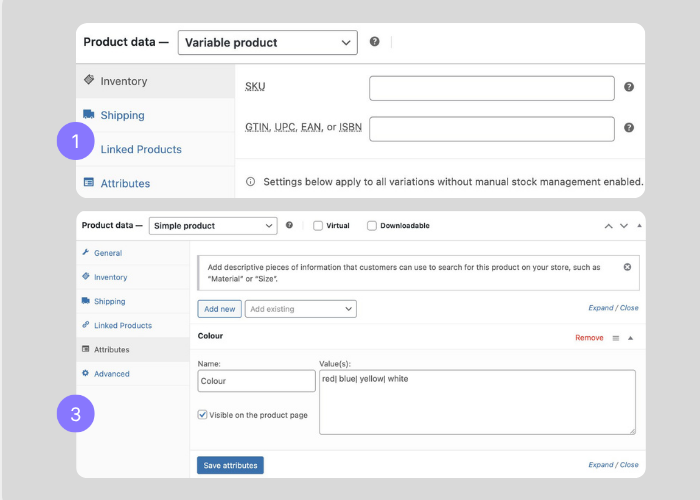
In WooCommerce, the ‘Product Data’ section is where you control how a product behaves and sells, from pricing and stock to shipping and variations. It’s organised into tabs. General, Inventory, Shipping, Linked Products, and more. Below is a walkthrough of the fields you’ll use most.
Pricing #
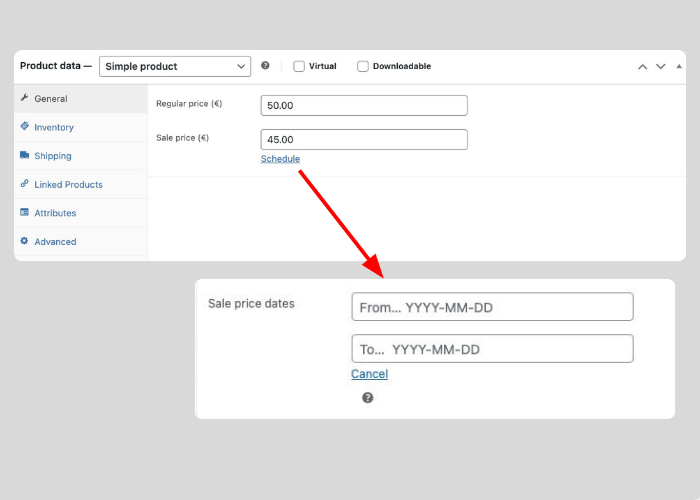
Enter pricing information:
- Regular price
- Sale price (if applicable). Sales can be scheduled to start and end using the “scheduleˮ section.
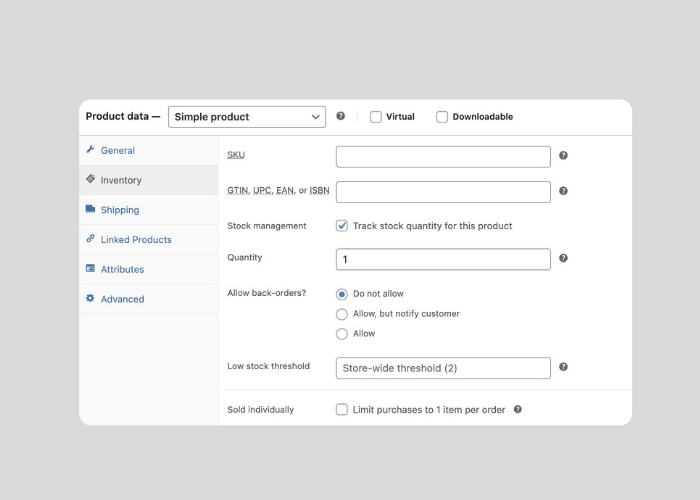
Inventory #
Configure stock settings in Inventory:
- Add a product SKU and any other identifying information thatʼs needed
- Stock management – tick this box if stock is to be managed
- Add a stock quantity
- Tick to allow backorders or not
- Set a low stock threshold if needed – this will alert you if a stock level falls below a critical level.
- Sold individually can be set if you wish to limit the product to 1 per order.
- If your product is a virtual item such as a fee – click select Virtual.
Upsells & Cross-sells #
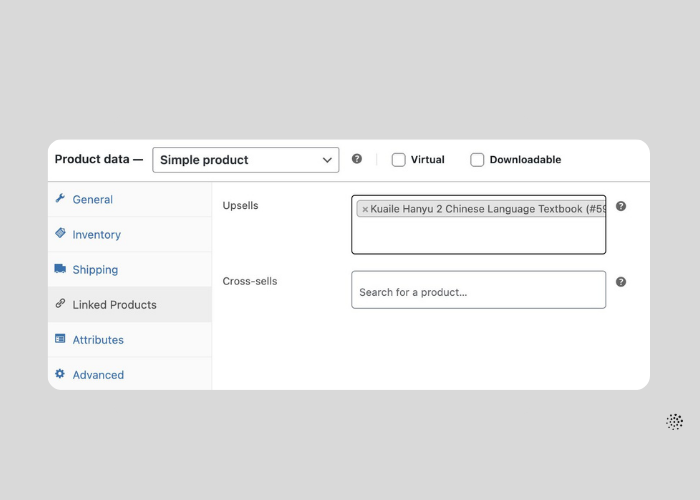
Upsells and cross sells can be set for your product in Linked Products.
- An upsell is a product that will be suggested alongside this product on the website. “You may also likeˮ.
- A cross-sell is a product to show on the cart, as a last minute sale a customer may wish to add.
Type the title of a product to add as a cross-sell or upsell product.
Attributes and Variations #
Create products with multiple selectable options such as colours or sizes.
- Change Product data to Variable Product.
- Navigate to the Attributes tab.
- Add attributes such as size or colour.
- Attribute values should be separated
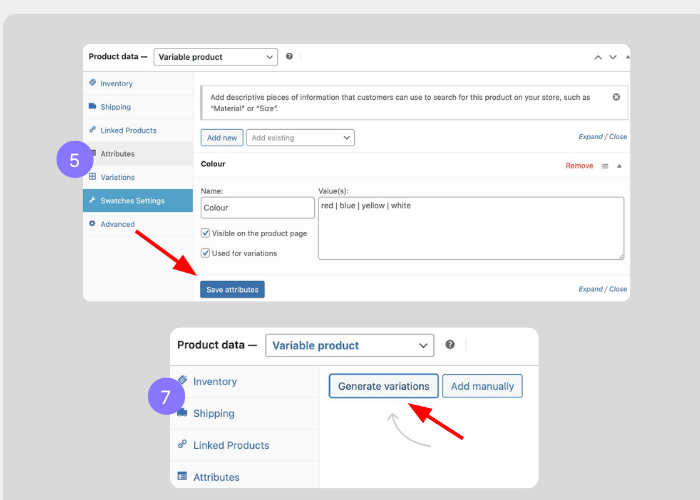
with a | (vertical bar). - Save attributes – ensure Visible on product page and Used for Variations is ticked.
- Open the Variations tab.
- Click Generate variations.
- Answer Yes to the pop up. All product combinations will be
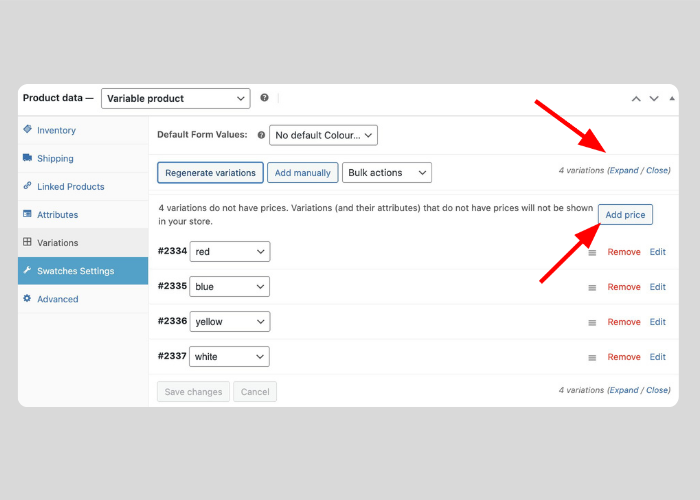
generated from the variations you have set. - If all variations of your product are the same price, click Add Price. This sets one price against all products.
- Add pricing and stock details for each variation. Use Expand to open the options for all as itʼs faster to edit.
- You can set specific prices for each variation if you prefer, for example, Red T-shirts could be more expensive than Yellow or only show White on sale. Stock levels can also
be set for all variations. 10 white or 2 red, for example. - Save changes.